

TK8 Download Guide for Mobile and Desktop Access
TK8 Download provides different access routes depending on the device you use. The supplied download page currently shows a direct Android option with a QR Code for the mobile application. For iOS and desktop users, NEW TK8 can be accessed through the appropriate TKASH App route, then opened by selecting the NEW TK8 service icon inside TKASH.
Table of Contents
TK8 Download Options by Device
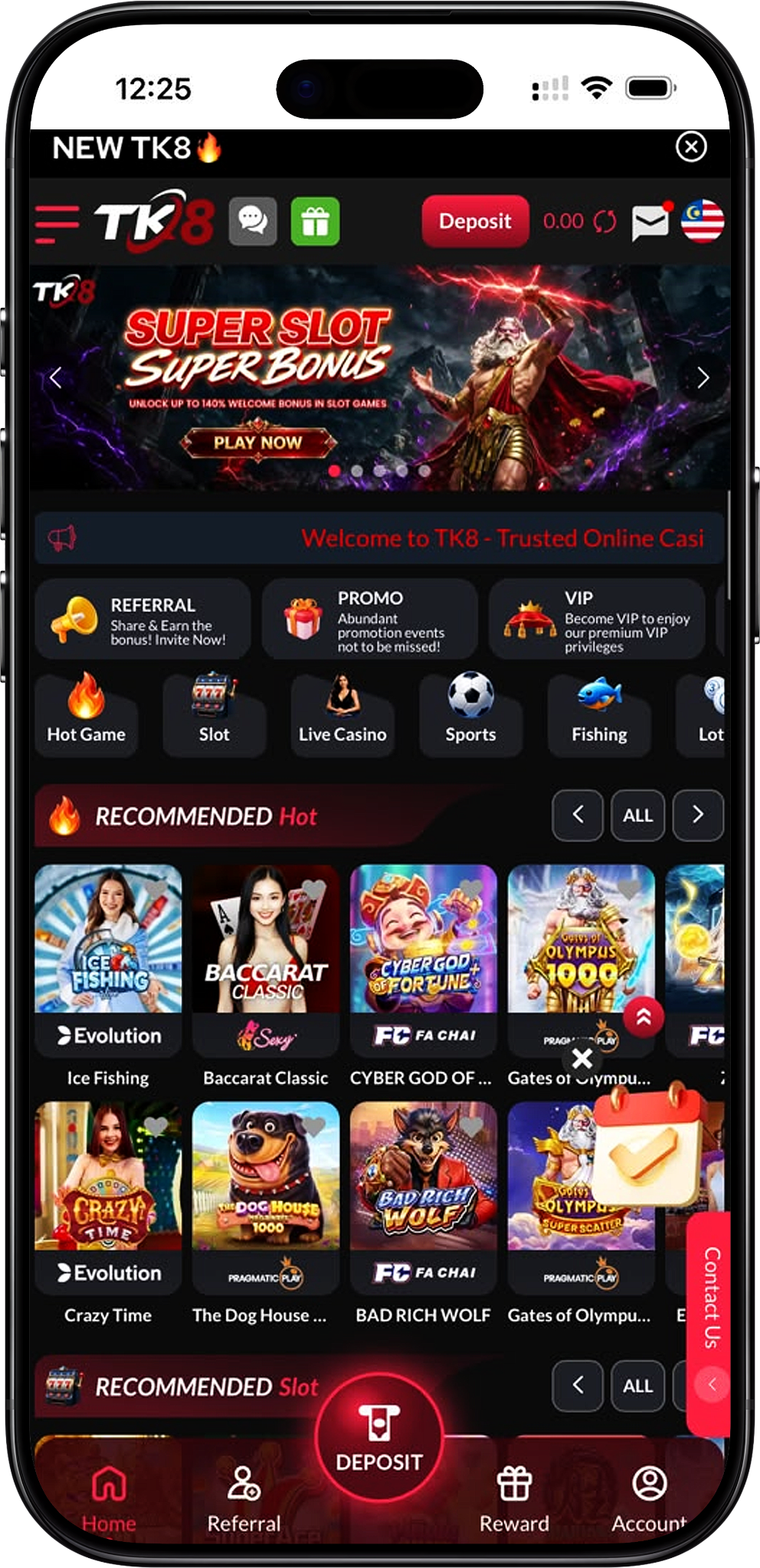
The correct download method depends on your operating system. Android users can use the direct APK route displayed on the download landing page. Users on other supported operating systems should choose the corresponding TKASH download option and enter NEW TK8 from the Services section after installing and accessing TKASH.
Android
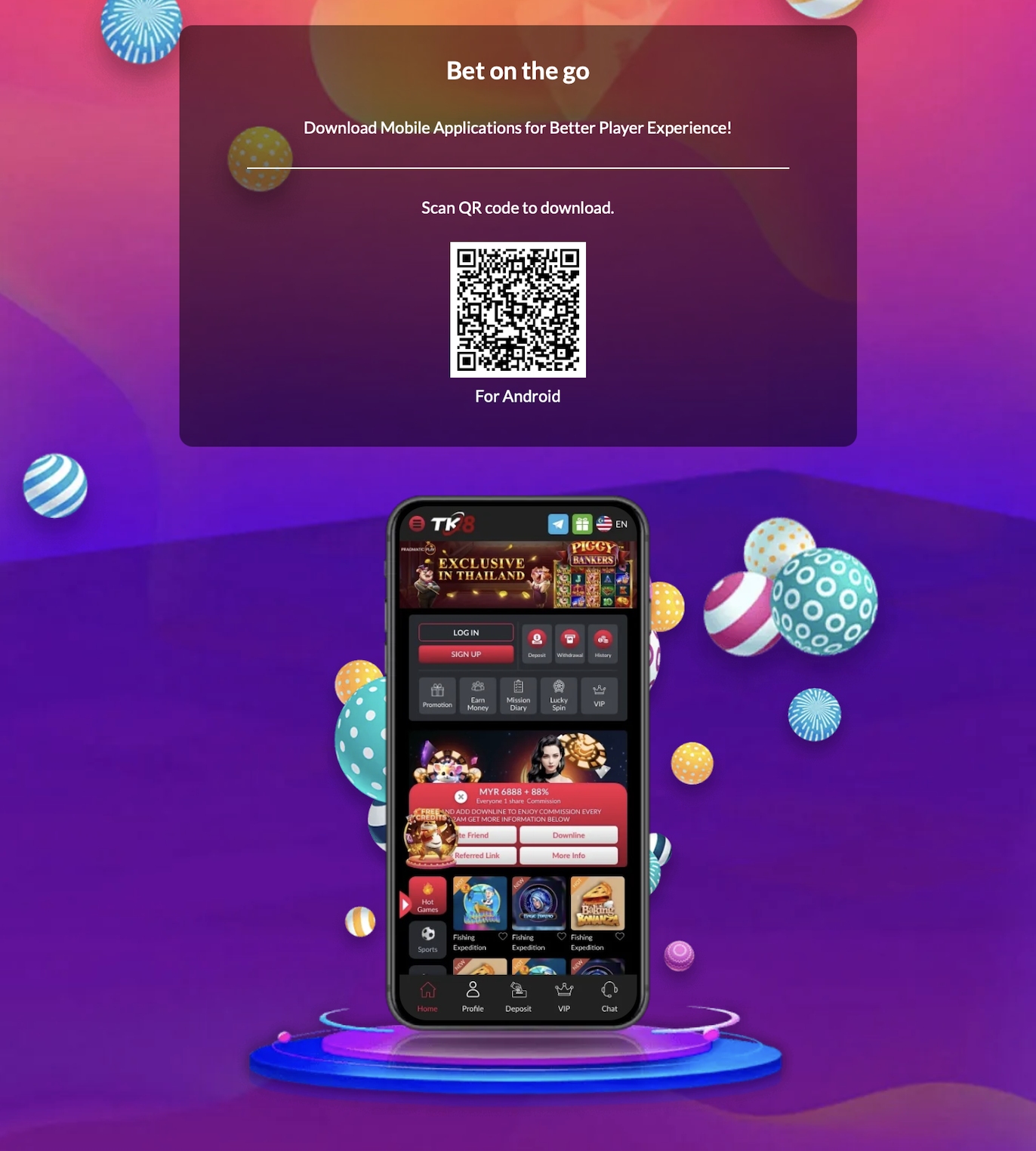
Android currently has a direct TK8 App download option. The supplied landing page displays “Scan QR code to download” with an Android QR Code. Users can therefore follow the direct APK route instead of first installing TKASH solely to reach the gaming service.
iOS
For iPhone and other supported iOS devices, use the TKASH iOS option available from the download landing page. After installing TKASH and accessing your account, locate NEW TK8 under Services and select its icon to open the platform.
Windows
Windows users should use the TKASH download option corresponding to the Windows route provided by the download landing page. Once TKASH is available on the device, access the account and select NEW TK8 from its Services section.
macOS
macOS users should use the TKASH download option corresponding to the Mac route provided by the download landing page. After installation and account access, NEW TK8 can be opened from the Services section within TKASH.
TK8 Android Download Steps
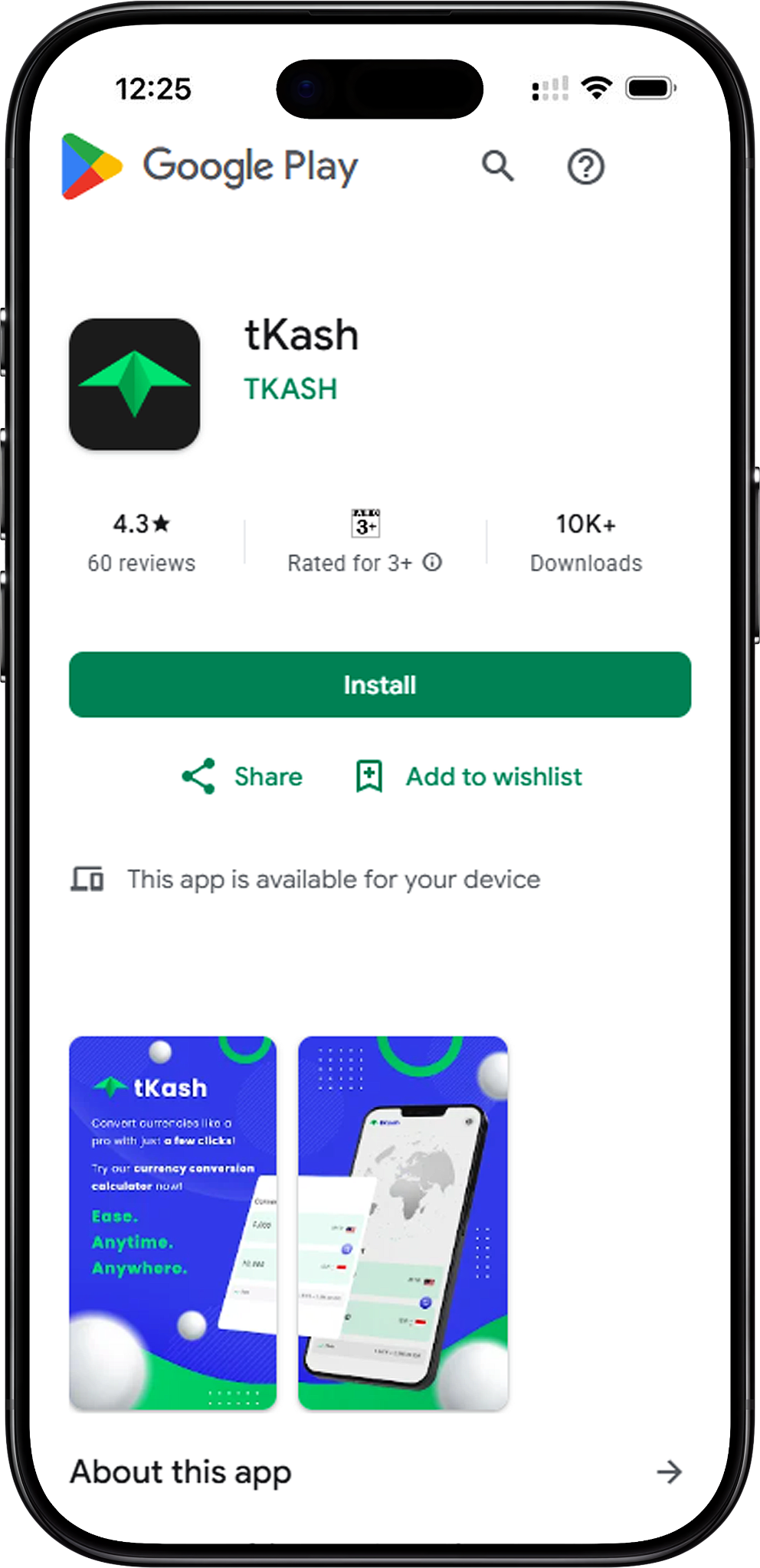
Step 1. Open the Download Page
Start from TK8 Download (/en/download, internal link) and select the relevant Download button. The button redirects users to the download landing page where the available mobile application options are presented.
Step 2. Choose the Android APK Option
On the download landing page, locate the Android section. The supplied material shows a QR Code labelled “For Android.” Select the Android APK download option when browsing directly on an Android device, or use the displayed Download QR when opening the page on another device.
Step 3. Scan the Android Download QR
If you are using a separate device to view the landing page, scan the displayed Android Download QR (/en/download, internal link) with your Android phone. Check the destination before proceeding and make sure the download corresponds to the intended Android application.
Step 4. Download the APK
Follow the Android download prompt to obtain the APK installation package. Wait until the file has finished downloading before attempting installation, and avoid APK files supplied through unrelated third-party messages, advertisements or unfamiliar websites.
Step 5. Install the Android App
Open the downloaded APK and follow the Android installation prompts. Depending on the device settings, Android may ask for permission before an APK obtained outside the default app store can be installed. Review the source before granting any installation permission.
Step 6. Open the App and Access Your Account
After installation, open the application and use TK8 Login (/en/login, internal link) if you already have an account. New users should complete TK8 Register (/en/register, internal link) before attempting account access.
TK8 iOS Download Steps
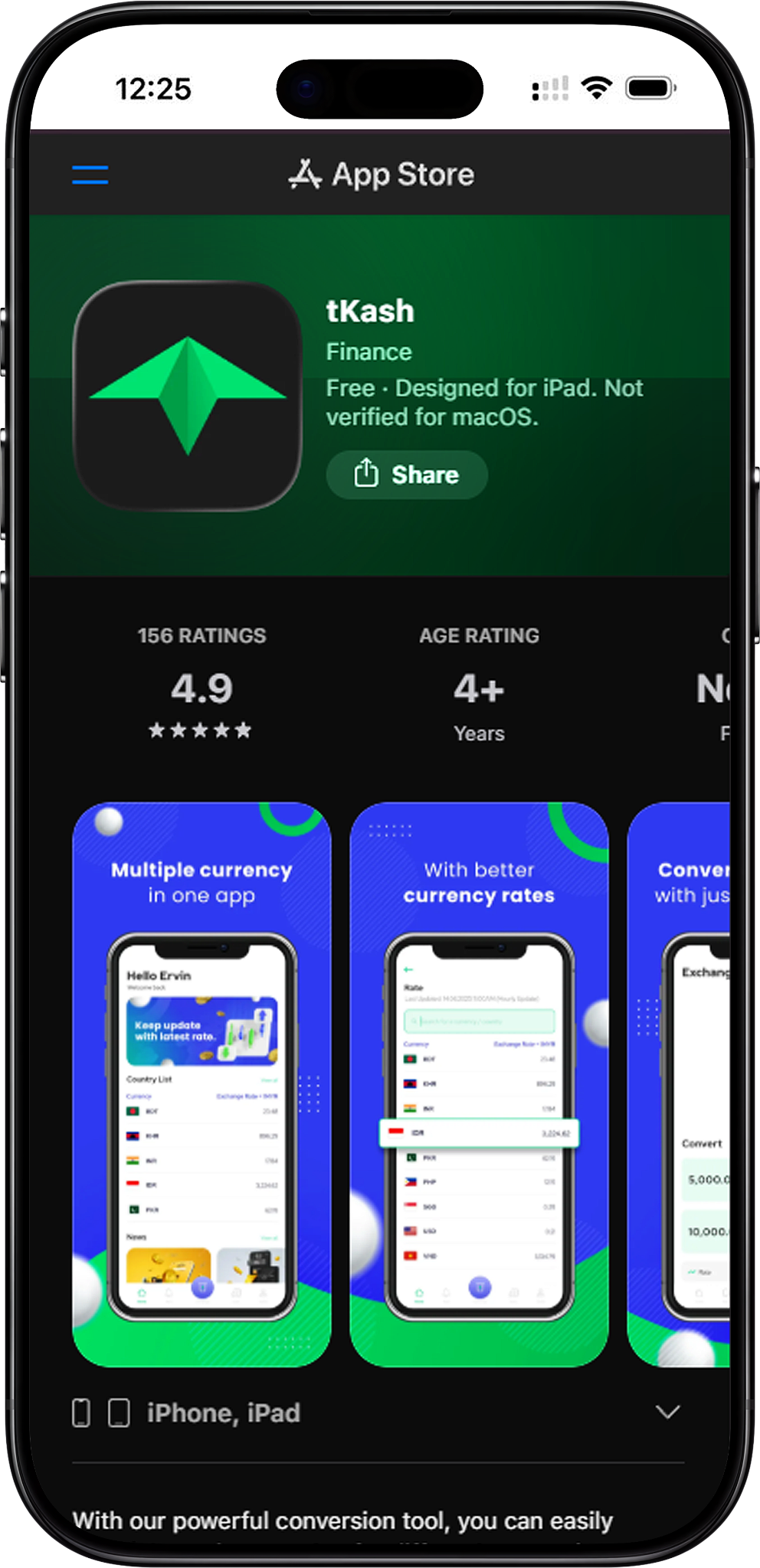
Step 1. Go to the Download Landing Page
Begin with TK8 Download for iOS (/en/download, internal link). Select the Download button on the current page to continue to the download landing page, then locate the TKASH option intended for iOS devices.
Step 2. Select the TKASH iOS Download
Choose the TKASH iOS Download (/en/download, internal link) option provided on the landing page. Follow the destination and installation instructions presented for your iPhone or other supported iOS device rather than using the Android APK.
Step 3. Install and Open TKASH
Complete the installation process required by iOS and open the TKASH App. If you already have a TKASH account, continue with its Login process. If account creation is required, complete the registration process before trying to access NEW TK8.
Step 4. Sign In to TKASH
Enter the mobile number associated with your TKASH account and complete the verification process shown by the application. Keep verification codes private and enter them only into the intended authentication screen.
Step 5. Select NEW TK8
After accessing TKASH, locate Services on the home screen and select NEW TK8 (/en, internal link). The supplied TKASH interface shows the NEW TK8 icon within this section. Selecting it opens the gaming platform without requiring the Android APK.
Step 6. Register or Login
Once NEW TK8 opens, use TK8 Register (/en/register, internal link) if you are a new user or TK8 Login (/en/login, internal link) if you already have account credentials. Follow the account instructions displayed for the selected option.
TK8 Windows Download Steps
Step 1. Open the Download Landing Page on Windows
Visit TK8 Download for Windows (/en/download, internal link) and select the relevant Download button to reach the download landing page. Instead of using the Android APK, locate the TKASH download route provided for Windows.
Step 2. Choose the TKASH Windows Option
Select the TKASH Windows Download (/en/download, internal link) option corresponding to your operating system. Before installing, verify that the selected package is intended for Windows and follow the instructions presented by the download route.
Step 3. Install TKASH on Windows
Open the downloaded installer and follow the installation prompts. Review any operating-system security notice before approving installation and avoid executables obtained from unrelated third-party sources.
Step 4. Access Your TKASH Account
Open TKASH after installation and complete the required account authentication. Use your registered information and keep passwords or verification codes private throughout the Login process.
Step 5. Open NEW TK8
From the TKASH interface, locate Services and select Open NEW TK8 (/en, internal link). Once the service opens, existing users can proceed to Login while new users can follow the registration route.
TK8 macOS Download Steps
Step 1. Open the Download Landing Page on macOS
Start from TK8 Download for macOS (/en/download, internal link) and select the relevant Download button. On the landing page, locate the TKASH download option intended for Mac devices rather than selecting the Android APK.
Step 2. Choose the TKASH macOS Option
Select the TKASH macOS Download (/en/download, internal link) option corresponding to your Mac. Follow the provided download instructions and confirm that the installer is intended for macOS before opening it.
Step 3. Install and Open TKASH
Complete the installation according to the instructions displayed by macOS, then launch TKASH. Review any operating-system security prompt carefully before granting permissions to the application.
Step 4. Sign In to Your TKASH Account
Complete the TKASH authentication process using your registered account information. If mobile verification is requested, enter the verification code only in the intended TKASH screen and do not disclose it to another person.
Step 5. Enter NEW TK8 from Services
After successful account access, find Services and select NEW TK8 through TKASH (/en, internal link). This opens the gaming service, where you can proceed with the appropriate Login or Sign Up option.
How to Open NEW TK8 Through TKASH
The supplied TKASH home screen shows NEW TK8 as a service icon. This provides an alternative access route for devices where the direct Android APK is not the appropriate installation method. Users first install the TKASH version for their operating system, access their TKASH account and then select NEW TK8.
Find the Services Section
After entering TKASH, remain on the home screen and locate Services. The supplied interface displays several service icons, including NEW TK8. Select the NEW TK8 icon rather than an unrelated service to continue.
Choose Register or Login
New users can follow TK8 Register and Sign Up (/en/register, internal link), while existing account holders can use TK8 Login and Sign In (/en/login, internal link). Choosing the appropriate account route helps avoid creating unnecessary duplicate accounts.
Explore the Platform After Access
After entering your account, visit TK8 Games (/en/games, internal link) to browse the available categories. These include Slot (/en/games/slot, internal link), Live Casino (/en/games/live-casino, internal link), Sports (/en/games/sports, internal link), Fishing (/en/games/fishing, internal link), Card Game (/en/games/card-game, internal link), Esports (/en/games/esports, internal link), Cockfight (/en/games/cockfight, internal link) and Instant Win (/en/games/instant-win, internal link).
Download and Installation Troubleshooting
The Android APK Does Not Download
Check that the device has an active internet connection and enough available storage, then reopen the download landing page. If you scanned the Download QR, confirm that the QR destination corresponds to the intended Android download before retrying.
Android Blocks the APK Installation
Android security settings may restrict installation of applications obtained outside the default app store. Review the warning and verify the source before changing any permission. Do not disable device protections permanently simply to install an application.
The QR Code Does Not Scan
Make sure the entire QR Code is visible, clean the camera lens and provide adequate lighting. If scanning still fails, use the relevant Download button directly on the device rather than repeatedly scanning an unreadable image.
I Cannot Find a Direct iOS App
The supplied information indicates that the direct TK8 application is currently available for Android. For iOS, use the TKASH iOS route on the download landing page, install TKASH and select NEW TK8 from Services after accessing your account.
I Cannot Find a Direct Windows or macOS App
Use the TKASH option corresponding to Windows or macOS rather than attempting to install the Android APK on a desktop operating system. Once TKASH is installed and accessible, select NEW TK8 from its Services section.
Safe App Access and Account Security
Download applications through the intended platform route, inspect unexpected browser or operating-system warnings and avoid installation packages sent by unknown third parties. Keep your account password and verification codes private, particularly when installing or accessing an application on a new device.
Verify the Download Route
Users can verify that they are starting from the intended website before following a Download button or QR Code. The main website is available at the single naked URL tk8official.com.my. Additional platform information can be reviewed through About Us (/en/about-us, internal link).
Review Policies Before Using the App
Read Terms and Conditions (/en/terms-and-conditions, internal link) and Privacy Policy (/en/privacy-policy, internal link) for relevant account and information-handling terms. Users should also review Disconnect Policy (/en/disconnect-policy, internal link) and Responsible Gaming (/en/responsible-gaming, internal link) before using gaming features.
TK8 Download FAQs
Is the TK8 App available for Android?
Yes. The supplied download landing page shows a direct Android option with a QR Code labelled “For Android.” Android users can follow this route to obtain the APK and install the application on a compatible device.
Is there a direct TK8 iOS App download?
Based on the supplied information, the direct application is currently available for Android. iOS users should download the appropriate TKASH App, access their TKASH account and select NEW TK8 from Services.
How do I access NEW TK8 on Windows?
Choose the TKASH Windows option from the download landing page and complete its installation. After accessing TKASH, locate NEW TK8 under Services and select its icon to open the platform.
How do I access NEW TK8 on macOS?
Choose the TKASH macOS option provided on the download landing page. Install and open TKASH, complete account access and select NEW TK8 from the Services section.
What is the Download QR used for?
The Download QR provides a convenient way to open the relevant mobile download route from another device. The supplied landing page specifically shows an Android QR Code that can be scanned when obtaining the Android application.
Do I need TKASH on Android?
The supplied information shows a direct Android APK route, so Android users can use that option to install the application directly. TKASH remains another platform route where NEW TK8 appears within the Services section.
Where is NEW TK8 inside TKASH?
After accessing the TKASH App, look for the Services section on the home screen. The supplied interface shows NEW TK8 as one of the available service icons. Select it to open the platform.
Do I need an account before downloading?
Downloading and account creation are separate steps. If you need a new account after obtaining the appropriate app, follow TK8 Register (/en/register, internal link). Existing users can proceed with TK8 Login (/en/login, internal link).
Where can I get help with downloading or account access?
Visit TK8 FAQs (/en/faqs, internal link) for common guidance. Users can also review TK8 Home (/en, internal link) for general navigation before proceeding to account or gaming sections.
Download and Access TK8 on Your Device
Use the Android APK and Download QR for direct Android installation, or choose the appropriate TKASH option for iOS, Windows or macOS and open NEW TK8 from Services.