

TK8 Withdrawal Guide for Bank Account Cash Out
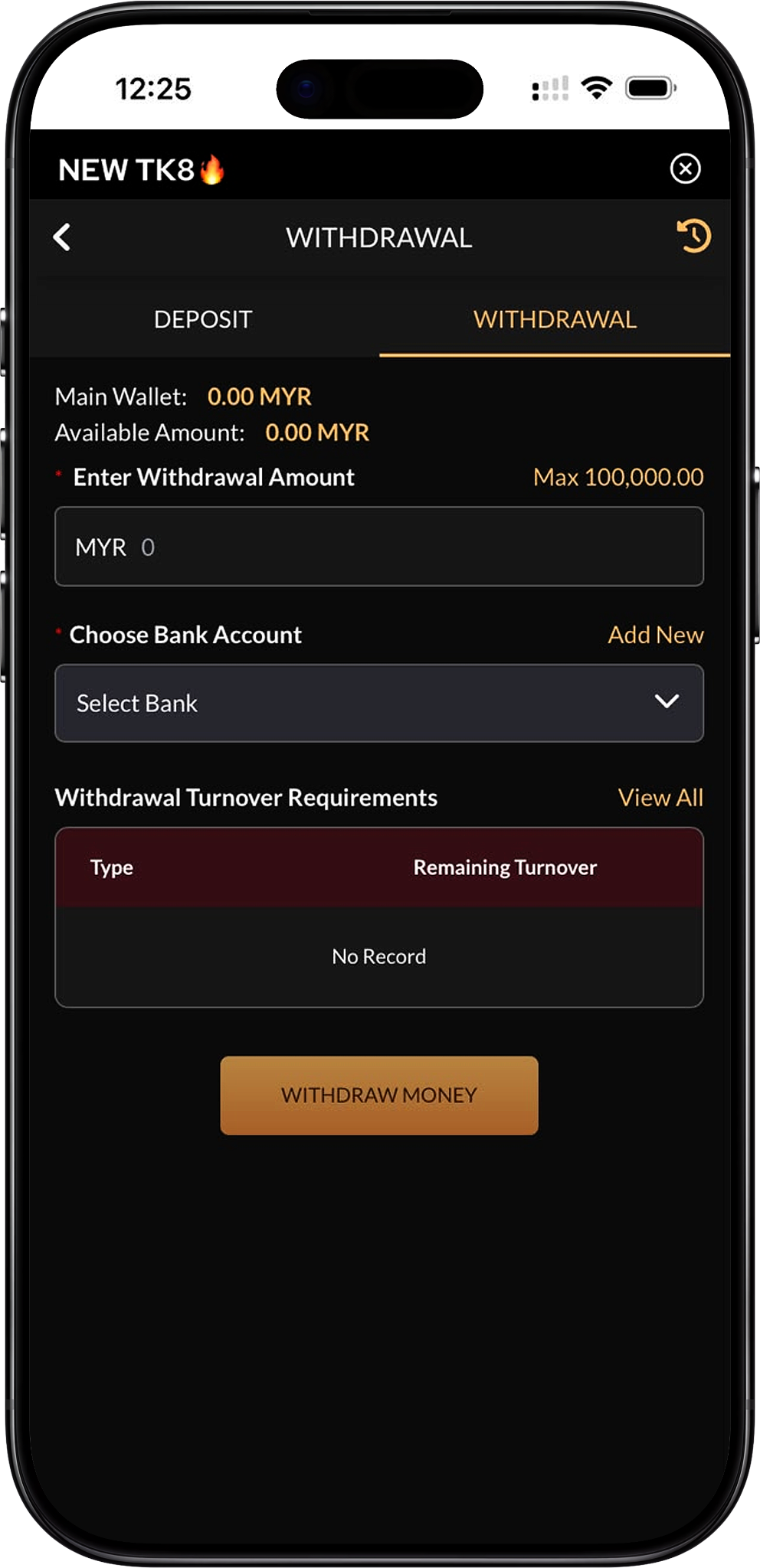
TK8 allows members to submit a withdrawal request from the available MYR balance shown in their account. The supplied withdrawal screen displays the Main Wallet, Available Amount, withdrawal amount field, bank account selector, turnover requirement area and a Withdraw Money button. Members should review each item carefully before submitting a request.
Table of Contents
- 1. TK8 Withdrawal Overview
- 2. Main Wallet and Available Amount
- 3. Withdrawal Amount and Limit
- 4. Bank Account Selection
- 5. Withdrawal Turnover Requirements
- 6. How to Make a TK8 Withdrawal
- 7. How to Add a Bank Account for Withdrawal
- 8. What to Check Before Withdrawing
- 9. What to Do After Submitting a Withdrawal
- 10. TK8 Withdrawal FAQs
TK8 Withdrawal Overview
What the Withdrawal Page Shows
The withdrawal interface is designed to help members review the amount currently available for cash out and submit funds to a selected bank account. The supplied screen includes the Main Wallet balance, Available Amount, an MYR withdrawal field, a bank account dropdown, an Add New option and a section for remaining turnover requirements.
Withdraw Only from the Available Balance
The Available Amount is the figure members should use when deciding how much they can request. The Main Wallet and Available Amount may not always represent the same withdrawable value if account conditions or remaining turnover requirements apply.
Main Wallet and Available Amount
Main Wallet Balance
The Main Wallet shows the balance currently held in the member account. Before requesting a cash out, check that the wallet contains sufficient funds and that the intended withdrawal amount does not exceed the amount permitted by the interface.
Available Amount
The Available Amount indicates the amount currently available for withdrawal. If the available figure is lower than the Main Wallet balance, review the Withdrawal Turnover Requirements section before proceeding.
Why the Available Amount Can Matter
A balance may be subject to account or promotion conditions before it becomes available for withdrawal. Members who have participated in a bonus or rebate offer should review the applicable terms before assuming that all wallet funds can be withdrawn immediately.
Withdrawal Amount and Limit
Entering the Withdrawal Amount
Members can type the desired amount into the MYR withdrawal field. The request should not exceed the Available Amount displayed in the account and should comply with the current withdrawal limit shown on the page.
Maximum Withdrawal
The supplied interface displays a maximum withdrawal amount of MYR 100,000 for the illustrated withdrawal screen. Members should use the limit currently displayed in their own account because transaction limits may be updated or differ by account circumstances.
Check the Amount Before Submission
Verify every digit before pressing the withdrawal button. Entering an incorrect amount can require the request to be cancelled or resubmitted if the platform permits changes.
Bank Account Selection
Choose a Saved Bank Account
The withdrawal screen includes a Select Bank dropdown for choosing a previously added bank account. Members should confirm that the selected bank account belongs to the intended recipient and that the saved details are accurate before submitting a request.
Add a New Bank Account
If no suitable bank account has been saved, use the Add New option shown beside the bank selector. Add the required bank information carefully and verify the details before using the account for withdrawal.
Use Accurate Banking Details
Incorrect bank information can delay or prevent a withdrawal from being completed. Members should confirm the bank, account holder details and account number whenever adding or selecting a withdrawal destination.
Withdrawal Turnover Requirements
What Remaining Turnover Means
The supplied interface contains a Withdrawal Turnover Requirements section with columns for Type and Remaining Turnover. This area is intended to show whether account activity must satisfy additional turnover before funds become eligible for withdrawal.
When No Record Is Displayed
The example screenshot shows “No Record” in the turnover section. This indicates that the illustrated account does not currently display a remaining turnover entry. Members should check their own account because the result can differ depending on deposits, bonuses, rebates and gaming activity.
Review Promotion Conditions
Promotional offers can carry their own turnover conditions. Members who selected a deposit bonus should review Promotion (/en/promotion, internal link), including the applicable welcome bonus or reload promotion, before requesting a withdrawal.
Rebate Turnover Conditions
Members who receive a rebate should also review Rebate (/en/rebate, internal link), as rebate-related funds may have their own conditions before transfers or withdrawals are available.
How to Make a TK8 Withdrawal
Step 1: Log In to the Correct Account
Open TK8 Login (/en/login, internal link) and sign in to the member account containing the funds you intend to withdraw.
Step 2: Open the Withdrawal Page
Select Withdrawal (/en/withdrawal, internal link) from the member wallet or account area to access the cash-out interface.
Step 3: Check the Main Wallet
Review the Main Wallet balance to confirm that funds are present in the account before entering a withdrawal amount.
Step 4: Check the Available Amount
Confirm the Available Amount shown on the page. Use this figure together with any displayed withdrawal limit when deciding how much to request.
Step 5: Review Remaining Turnover
Check the Withdrawal Turnover Requirements section before proceeding. If a remaining turnover entry is displayed, complete the applicable requirement before submitting a request where required by the platform conditions.
Step 6: Enter the Withdrawal Amount
Type the required MYR amount into the withdrawal field. Keep the request within the Available Amount and the maximum displayed on the active page.
Step 7: Choose a Bank Account
Select the correct saved bank account from the dropdown. If you have not added one yet, use the Add New option before continuing.
Step 8: Verify the Withdrawal Details
Confirm the withdrawal amount, bank selection, Available Amount and any turnover requirements. Do not continue until the displayed information is correct.
Step 9: Press Withdraw Money
Select the Withdraw Money button to submit the request. Avoid submitting duplicate requests while the first transaction is still being processed.
Step 10: Check the Transaction Status
After submission, review the account’s withdrawal or transaction history where available to monitor the request. The main naked URL is https://tk8official.com.my.
How to Add a Bank Account for Withdrawal
Step 1: Open the Withdrawal Interface
Go to Withdrawal (/en/withdrawal, internal link) after signing in to your member account.
Step 2: Select Add New
Click the Add New option beside the bank account selector when you need to register another withdrawal destination.
Step 3: Enter the Required Bank Information
Provide the requested bank and account information exactly as required by the form. Use accurate details that correspond to the account intended to receive the withdrawal.
Step 4: Review the Banking Details
Check the account holder information, bank selection and account number before saving. A small typing error can send the request to an invalid destination or cause processing problems.
Step 5: Save and Select the Bank Account
Complete the bank registration process, return to the withdrawal page and select the newly added account from the available bank list.
Step 6: Continue with the Withdrawal
Enter an eligible amount, review turnover requirements and submit the transaction only after the correct saved bank account is selected.
What to Check Before Withdrawing
Confirm the Available Balance
Do not base a withdrawal request only on the Main Wallet figure. Check the Available Amount because that is the balance specifically presented for withdrawal eligibility.
Confirm the Maximum Limit
The supplied screenshot shows a maximum of MYR 100,000, but members should follow the amount displayed in the active withdrawal interface at the time of the request.
Confirm Turnover Completion
Review all remaining turnover records before submitting. If you previously used a welcome bonus, reload bonus or rebate, confirm that any applicable requirements have been completed.
Confirm the Bank Account
Make sure the selected bank account is correct and current. If the saved information is outdated or incorrect, add or update the appropriate account before withdrawing.
Review Deposit Bonus Conditions
Members who funded the account through Deposit (/en/deposit, internal link) and selected a promotional offer should review the relevant terms before withdrawing.
Review Specific Welcome Offers
If you selected the SLOTS 100% WELCOME BONUS RM 800* (/en/promotion/slots-100-welcome-bonus-rm800, internal link) or LIVE CASINO 50% WELCOME BONUS RM 300* (/en/promotion/live-casino-50-welcome-bonus-rm300, internal link), verify that the applicable turnover and eligibility requirements have been satisfied.
Review Reload Bonus Requirements
Members who used the 10% UNLIMITED RELOAD BONUS RM200 (/en/promotion/10unlimited-reload-bonus-rm200, internal link) should confirm that the required turnover has been completed before requesting a withdrawal.
Check Responsible Gaming Limits
Visit Responsible Gaming (/en/responsible-gaming, internal link) for guidance on managing deposits, withdrawals and gaming activity within personal financial limits.
What to Do After Submitting a Withdrawal
Monitor Withdrawal History
Use the transaction or withdrawal history where available to review the status of the submitted request rather than repeatedly submitting the same withdrawal.
Keep the Selected Bank Account Active
Ensure that the bank account used for the request remains active and capable of receiving the funds while the transaction is being processed.
Check for Account Notifications
Review account notifications or messages for any request for additional information, failed transaction notice or status update related to the withdrawal.
Avoid Changing Details During Processing
If a withdrawal is already being processed, avoid changing banking information associated with the request unless the platform specifically instructs you to do so.
Contact Support When Necessary
If a request remains unresolved or is rejected without a clear explanation, prepare the relevant transaction details and use the platform’s available customer support channel for assistance.
TK8 Withdrawal FAQs
How do I withdraw money?
Sign in, open the withdrawal page, review your Available Amount and remaining turnover, enter the MYR amount, choose a bank account and press Withdraw Money.
What does Main Wallet mean?
Main Wallet represents the funds held in the account. It should be checked together with the Available Amount because not every displayed wallet balance is necessarily available for immediate withdrawal.
What does Available Amount mean?
Available Amount is the balance currently shown as available for withdrawal after the account’s applicable conditions are considered.
What is the maximum withdrawal amount?
The supplied screen displays a maximum withdrawal of MYR 100,000. Members should confirm the current limit shown in their own withdrawal interface before submitting a request.
Can I withdraw more than my Available Amount?
No. A withdrawal request should remain within the amount currently shown as available and within the active transaction limit.
Why is my Available Amount lower than my Main Wallet?
This can occur when part of the balance is still subject to account or promotional conditions. Review the Withdrawal Turnover Requirements area and any applicable bonus or rebate terms.
What is Remaining Turnover?
Remaining Turnover shows any qualifying activity that still needs to be completed before the associated funds meet the applicable withdrawal condition.
What does “No Record” mean under Withdrawal Turnover Requirements?
In the supplied example, “No Record” indicates that there is no turnover entry displayed for that account at that moment. Your own account may show different information depending on activity and promotions.
Do bonuses affect withdrawals?
They can. Some promotions include turnover requirements or other conditions that must be met before related funds can be withdrawn.
Do rebates affect withdrawals?
Rebate arrangements can also include conditions. Review Rebate (/en/rebate, internal link) and the relevant promotion terms before requesting funds.
How do I choose a bank account?
Use the Select Bank dropdown on the withdrawal page and choose the saved account that should receive the funds.
What if I have not added a bank account?
Select Add New beside the bank selector and provide the requested bank account information before continuing with the withdrawal.
What if I entered the wrong bank details?
Do not submit the request until the bank details are corrected. If a request has already been submitted, use the available support channel as soon as possible with the relevant transaction information.
Can I submit several withdrawal requests at the same time?
Members should avoid unnecessary duplicate requests. Submit the required transaction and review its status before creating another request unless the platform clearly permits otherwise.
Where can I check deposit information?
Review Deposit (/en/deposit, internal link) for supported funding methods, channels, limits and deposit bonus selection.
Where can I review promotions before withdrawing?
Open Promotion (/en/promotion, internal link) to review the conditions attached to welcome bonuses, reload offers, rebates and VIP-related benefits.
Where can I review my gaming options?
Members can browse Games (/en/games, internal link), including Slot (/en/games/slot, internal link), Live Casino (/en/games/live-casino, internal link), Sports (/en/games/sports, internal link), Fishing (/en/games/fishing, internal link), Card Game (/en/games/card-game, internal link), Esports (/en/games/esports, internal link), Cockfight (/en/games/cockfight, internal link) and Instant Win (/en/games/instant-win, internal link).
Where can new members create an account?
New users can review Register (/en/register, internal link) for account creation guidance before using deposit and withdrawal functions.
Where can existing members sign in?
Existing members can open Login (/en/login, internal link) to access their member wallet and withdrawal functions.
Where can I find general platform information?
Use Home (/en, internal link) for the main platform overview, About Us (/en/about-us, internal link) for general information and FAQs (/en/faqs, internal link) for additional guidance.
Where can I review platform rules?
Members should read Terms and Conditions (/en/terms-and-conditions, internal link), Privacy Policy (/en/privacy-policy, internal link) and Disconnect Policy (/en/disconnect-policy, internal link) for applicable platform policies.
Withdraw Your Available MYR Balance
Review your Available Amount, confirm any remaining turnover, select the correct bank account and verify the withdrawal amount before submitting your cash-out request.